MEDIA
WHY
FEATURES
SETUP
HOW IT WORKS
PRICING
FAQ
NOW ON THE APP STORE

Your AI agents.
Untethered.

Command Claude Code, Codex CLI, Cursor, and Amp from your iPhone — over any network, anywhere in the world. No port forwarding. No VPN. No desk required.

↗ Download on the App Store See how it works
CYPHIR — LIVE SESSION
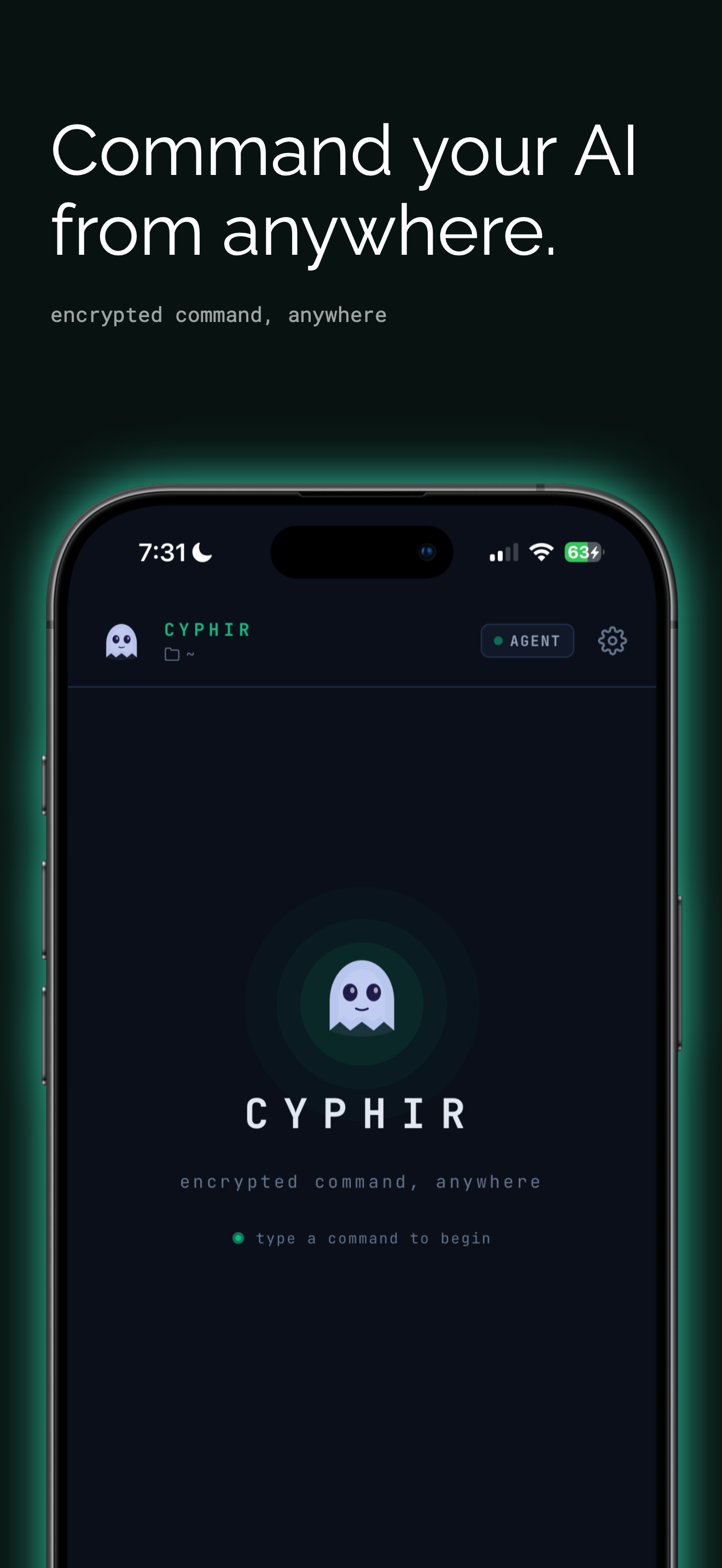
Command your AI from anywhere
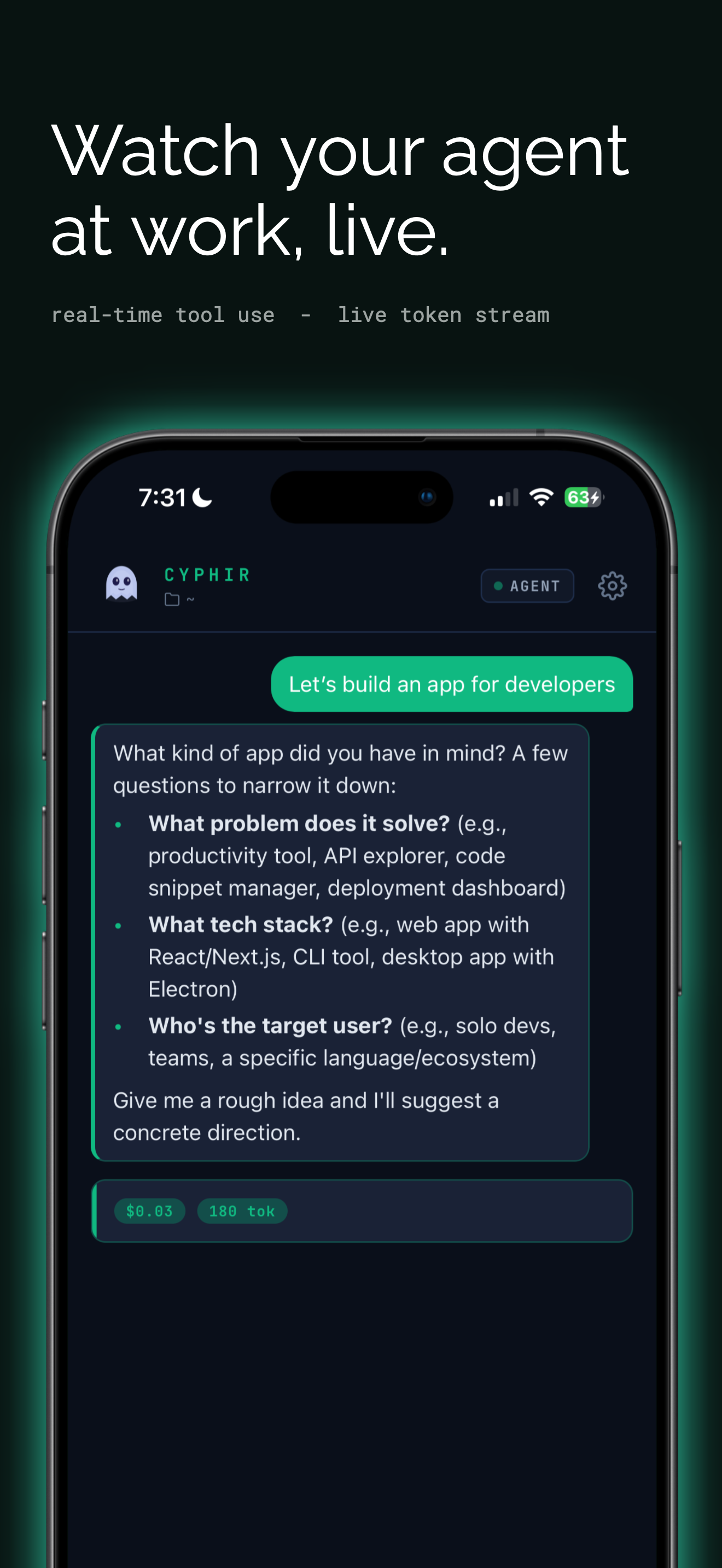
Watch your agent at work, live
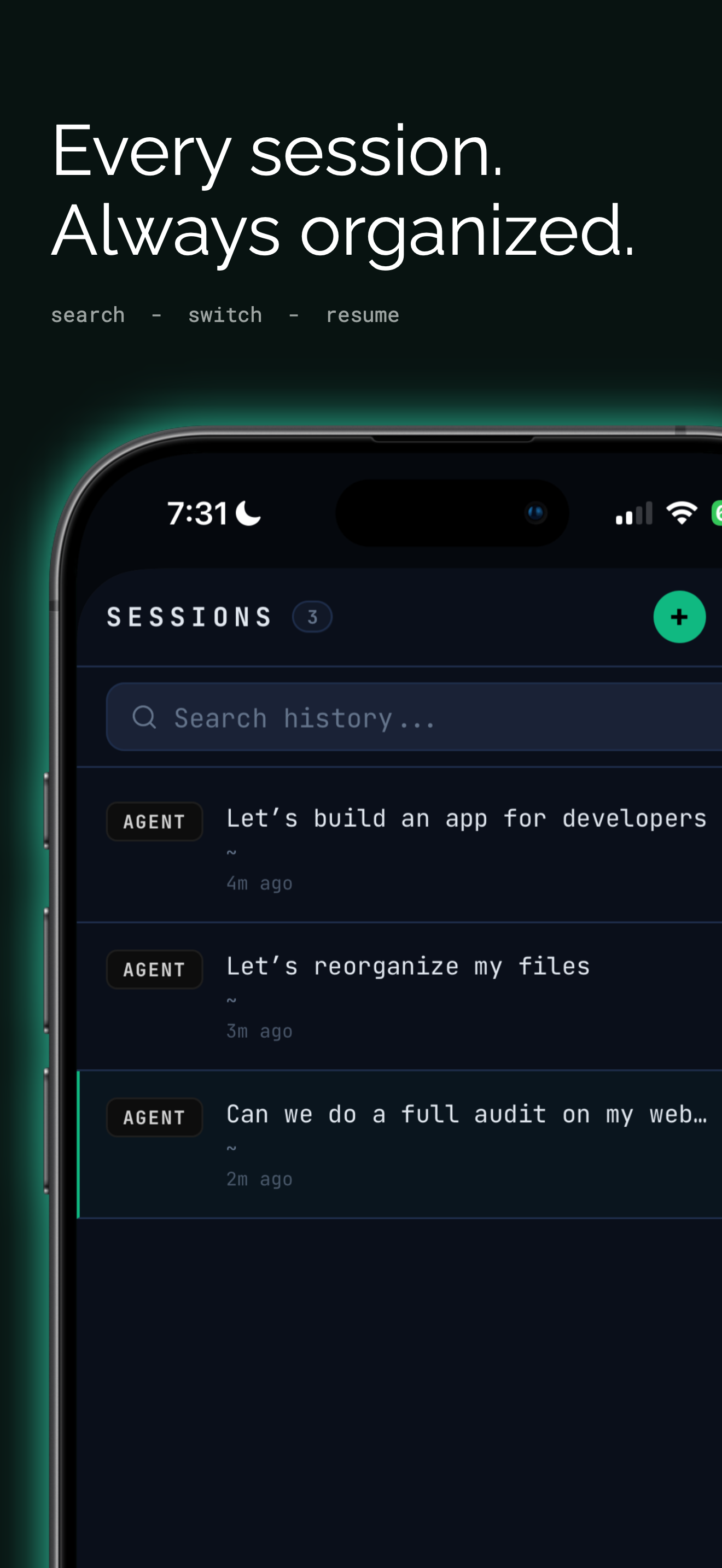
Every session. Always organized.
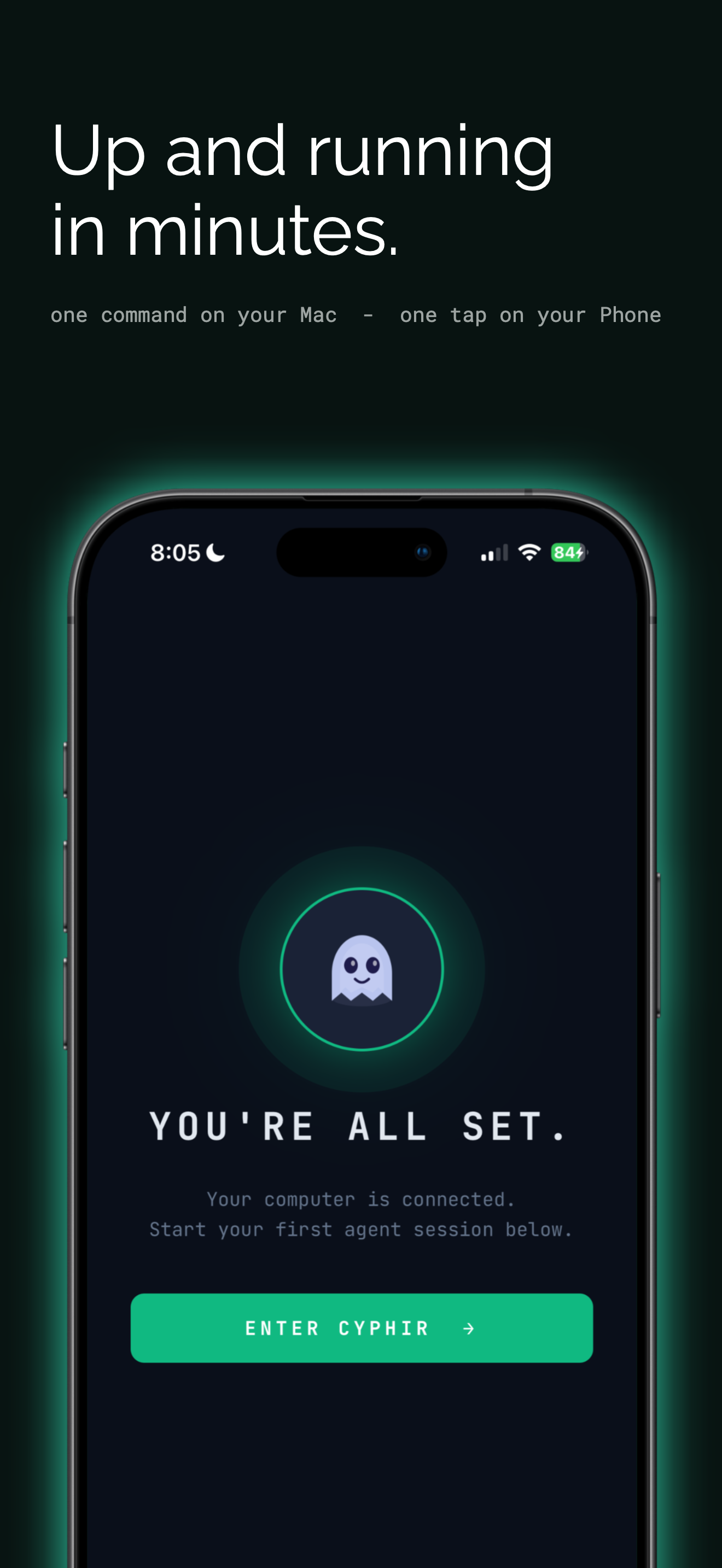
Up and running in minutes.
0
PORTS OPENED
< 5
MINUTES TO SETUP
100%
TLS ENCRYPTED
5+
AI AGENTS SUPPORTED

Every AI coding agent
chains you to your desk.

Claude Code halts and waits for your approval. Codex pauses mid-refactor. Cursor needs your eyes. The tools that were supposed to free you are the ones keeping you seated.

Cyphir cuts the leash. Your agent runs on your machine. You review, approve, and redirect from wherever you are. The work doesn't stop when you do.

COFFEE SHOP
Your agent refactors the auth layer. You approve the file write between sips.
✈️
35,000 FT
Laptop closed, seatbelt on, WiFi connected. Your agent ships the fix at cruising altitude. You land and it's already merged.
🏋️
GYM
Three sessions running in parallel. Approve the next tool call between sets.

CAPABILITIES

Everything you need.
Nothing you don't.

Cyphir is built for developers who use AI agents seriously. Every feature is purpose-built for the command and control of autonomous coding workflows.

REMOTE SESSION CONTROL
Start, monitor, and stop AI coding sessions from your iPhone. Select your working directory, choose your tool, and dispatch — from anywhere on any network.
REAL-TIME TOOL APPROVAL
When your agent wants to write a file, run a shell command, or make a network request, Cyphir intercepts it and sends it to your phone for approval before anything executes.
MULTI-MACHINE DASHBOARD
All your connected computers in one view. See live status, active sessions, and last-seen times. Switch machines instantly without reconfiguring anything.
FULL SESSION HISTORY
Every session is logged and searchable. Find any command you gave, any file your agent edited, any tool call that was approved or denied. Full audit trail, always.
ZERO INFRASTRUCTURE
No SSH tunnels. No VPN. No ngrok. No port forwarding. The bridge daemon initiates a single outbound connection. Your firewall stays closed. Your router stays untouched.
MID-SESSION INTERRUPT
Changed your mind? Tap interrupt to stop an agent mid-execution. The session is preserved so you can redirect with a follow-up prompt or close it cleanly.

Get your AI agent
connected in minutes.

Install your preferred AI coding tool, then install the Cyphir bridge daemon. Pair your phone with a single command. You're live.

  1. Install Node.js
    Claude Code requires Node.js 18 or higher. Install via Homebrew (recommended) or from nodejs.org.
    brew install node
  2. Install Claude Code globally
    npm install -g @anthropic-ai/claude-code
  3. Set your Anthropic API key
    Add this to your ~/.zshrc or ~/.bash_profile to persist it across sessions.
    export ANTHROPIC_API_KEY=sk-ant-...
  4. Verify the install
    claude --version

  5. Install the Cyphir bridge daemon
    This one command installs the daemon and registers it as a macOS LaunchAgent so it starts automatically.
    curl -fsSL https://api.decipherapp.com/cipher/daemon/install-cipher.sh | bash
  6. Pair in the app
    Open Cyphir on your iPhone, go to Machines, and tap Add Machine. Enter the 6-character pairing code shown in your terminal. Your Mac appears as online within seconds.
  1. Install Node.js
    Download and install the LTS version from nodejs.org. Run the installer and accept defaults.
  2. Install Claude Code (run PowerShell as Administrator)
    npm install -g @anthropic-ai/claude-code
  3. Set your Anthropic API key
    This persists the environment variable system-wide. Open a new PowerShell after running this.
    setx ANTHROPIC_API_KEY "sk-ant-..."
  4. Verify the install
    claude --version

  5. Install the Cyphir bridge daemon (PowerShell as Administrator)
    irm https://api.decipherapp.com/cipher/daemon/install-cipher.ps1 | iex
  6. Pair in the app
    Open Cyphir on your iPhone, go to Machines, and tap Add Machine. Enter the 6-character pairing code from your terminal. Your PC appears as online within seconds.
  1. Install Node.js
    brew install node
  2. Install Codex CLI globally
    npm install -g @openai/codex
  3. Set your OpenAI API key
    export OPENAI_API_KEY=sk-...
  4. Verify the install
    codex --version

  5. Install the Cyphir bridge daemon
    curl -fsSL https://api.decipherapp.com/cipher/daemon/install-cipher.sh | bash
  6. Pair in the app
    Open Cyphir, go to Machines, tap Add Machine, and enter the 6-character pairing code.
  1. Install Node.js
    Download the LTS installer from nodejs.org and run it.
  2. Install Codex CLI (PowerShell as Administrator)
    npm install -g @openai/codex
  3. Set your OpenAI API key
    setx OPENAI_API_KEY "sk-..."
  4. Verify the install
    codex --version

  5. Install the Cyphir bridge daemon (PowerShell as Administrator)
    irm https://api.decipherapp.com/cipher/daemon/install-cipher.ps1 | iex
  6. Pair in the app
    Open Cyphir, go to Machines, tap Add Machine, and enter the 6-character pairing code.
  1. Download Cursor
    Go to cursor.com and download the macOS installer (.dmg).
  2. Install and sign in
    Open the .dmg and drag Cursor to your Applications folder. Launch it and sign in with your Cursor account (or create one at cursor.com).
  3. Open your project
    In Cursor, go to File → Open Folder and select your project directory. Cyphir dispatches sessions into this directory.

  4. Install the Cyphir bridge daemon
    curl -fsSL https://api.decipherapp.com/cipher/daemon/install-cipher.sh | bash
  5. Select Cursor in Cyphir and pair
    In the Cyphir app, tap the AI agent selector and choose Cursor. Then go to Machines, tap Add Machine, and enter your pairing code.
  1. Download Cursor
    Go to cursor.com and download the Windows installer (.exe).
  2. Install and sign in
    Run CursorSetup.exe and follow the installer prompts. Launch Cursor and sign in with your Cursor account.
  3. Open your project
    In Cursor, go to File → Open Folder and select your project directory.

  4. Install the Cyphir bridge daemon (PowerShell as Administrator)
    irm https://api.decipherapp.com/cipher/daemon/install-cipher.ps1 | iex
  5. Select Cursor in Cyphir and pair
    In Cyphir, choose Cursor as your agent, go to Machines, tap Add Machine, and enter the pairing code.
  1. Install Node.js
    brew install node
  2. Install Amp globally
    npm install -g @sourcegraph/amp
  3. Authenticate with Sourcegraph
    amp auth
  4. Verify the install
    amp --version

  5. Install the Cyphir bridge daemon
    curl -fsSL https://api.decipherapp.com/cipher/daemon/install-cipher.sh | bash
  6. Pair in the app
    Open Cyphir, go to Machines, tap Add Machine, and enter the 6-character pairing code.
  1. Install Node.js
    Download the LTS installer from nodejs.org.
  2. Install Amp (PowerShell as Administrator)
    npm install -g @sourcegraph/amp
  3. Authenticate
    amp auth
  4. Verify
    amp --version

  5. Install the Cyphir bridge daemon (PowerShell as Administrator)
    irm https://api.decipherapp.com/cipher/daemon/install-cipher.ps1 | iex
  6. Pair in the app
    Open Cyphir, go to Machines, tap Add Machine, and enter the pairing code.
  1. Install Python 3.8+
    brew install python
  2. Install Aider
    pip install aider-chat
  3. Set your API key (OpenAI or Anthropic)
    export OPENAI_API_KEY=sk-...
  4. Verify the install
    aider --version

  5. Install the Cyphir bridge daemon
    curl -fsSL https://api.decipherapp.com/cipher/daemon/install-cipher.sh | bash
  6. Pair in the app
    Open Cyphir, go to Machines, tap Add Machine, and enter the 6-character pairing code.
  1. Install Python
    Download Python 3.8+ from python.org. Run the installer and check "Add Python to PATH".
  2. Install Aider
    pip install aider-chat
  3. Set your API key
    setx OPENAI_API_KEY "sk-..."
  4. Verify
    aider --version

  5. Install the Cyphir bridge daemon (PowerShell as Administrator)
    irm https://api.decipherapp.com/cipher/daemon/install-cipher.ps1 | iex
  6. Pair in the app
    Open Cyphir, go to Machines, tap Add Machine, and enter the pairing code.

HOW IT WORKS

Up and running
in under 5 minutes.

A lightweight daemon on your computer connects outbound to our relay. Your phone connects to the same relay. No ports opened on either side.

1
Download Cyphir and create your account
Sign up with your email. Your 7-day free trial starts immediately. No credit card required.
2
Install the bridge daemon on your computer
One command installs the daemon and registers it as a system service. It starts automatically and reconnects silently on reboot.
3
Pair your phone to your computer
Tap Add Machine in the app. Enter the 6-character code from your terminal. Your machine is live within seconds.
4
Start commanding your agents
Tap the compose button, choose your AI agent and working directory, and send your first command. Your agent is now under mobile command.

WHY CYPHIR

Not all remote access
is created equal.

Built from scratch for AI agent workflows — not bolted onto a tool designed for something else.

Cyphir SSH Tunnel Screen Share ngrok
Setup time < 5 minutes 30+ minutes No agent control 10+ minutes
Port forwarding required No Yes Depends Yes
Mobile-native UI Yes No Barely No
AI agent-aware Yes No No No
Tool approval flow Built-in Manual Manual None
Works on cellular Yes Firewall-dependent High bandwidth Yes

We relay packets.
We never see your code.

Your code runs on your machine. Your agent runs on your machine. Cyphir relays encrypted packets between your phone and your computer — and nothing else.

[ iPhone ]  ─── TLS 1.3 + JWT ───▶ [ Cyphir Relay ]  ─── TLS 1.3 + JWT ───▶ [ Your Computer ]
  Cyphir app                        VPS, relay only                         Bridge daemon

                                                                                              ▼
                                                                                   [ Claude Code / Codex / Cursor / Amp ]
                                                                                     subprocess on your machine, your filesystem
ZERO INBOUND EXPOSURE
The bridge daemon connects outbound to our relay. Your machine never accepts inbound connections. Your firewall and router are unchanged.
ENCRYPTED END TO END
All connections use TLS 1.3. Authentication uses short-lived JWTs. Bridge tokens are invalidated immediately on logout.
YOUR CODE STAYS LOCAL
Cyphir does not receive, store, or process your source code. Commands are dispatched as instructions. Results stream back as output.
PER-MACHINE TOKENS
Each computer gets its own cryptographic bridge token. Removing a machine from the app immediately revokes its access.

PRICING

Simple, honest pricing.

Full access during your trial. No feature gating, no credit card required to start.

FREE TRIAL
$0
7 days, no card required
  • All AI agents supported
  • Unlimited sessions
  • Multi-machine support
  • Tool approval engine
  • Full session history
Get Started Free

FAQ

Common questions.

No. Your code never passes through our servers. Cyphir relays encrypted command packets from your phone to the bridge daemon on your computer. The agent runs locally on your machine, reads your local files, and its output streams back to your phone through the same encrypted relay. We are a message bus, not a code host.
No. The bridge daemon initiates a single outbound connection to our relay over standard HTTPS/WSS (port 443). Your firewall stays exactly as it is. Your router needs no changes. No port forwarding, no DMZ, no static IP required.
Currently: Claude Code (Anthropic), Codex CLI (OpenAI), Cursor, Amp (Sourcegraph), and Aider. Support for additional agents is added regularly. If your preferred tool isn't listed, contact us at support@decipherapp.com.
Yes. The Windows bridge installer is available and functional via PowerShell. macOS is the primary supported platform at launch with the most testing behind it, but Windows support is fully available and actively maintained.
The session is preserved in Cyphir. When your computer reconnects, the bridge daemon re-establishes its relay connection automatically. You can resume the session or start a new one. Sessions that were in-flight at disconnect will need to be restarted.
Yes. Each computer gets its own bridge daemon install and its own pairing code. All your machines appear in the Machines tab with live status, active sessions, and last-seen times. Switch between them instantly with no reconfiguration.
Yes, and no. Cyphir includes a 7-day free trial with full access to every feature. No credit card is required to start. After 7 days, Cyphir Pro is $9.99 per month.

GET STARTED

Ready to cut the leash?

7-day free trial. No card required. Up and running in under 5 minutes.

↗ Download on the App Store

$9.99 / month after trial  ·  Cancel any time